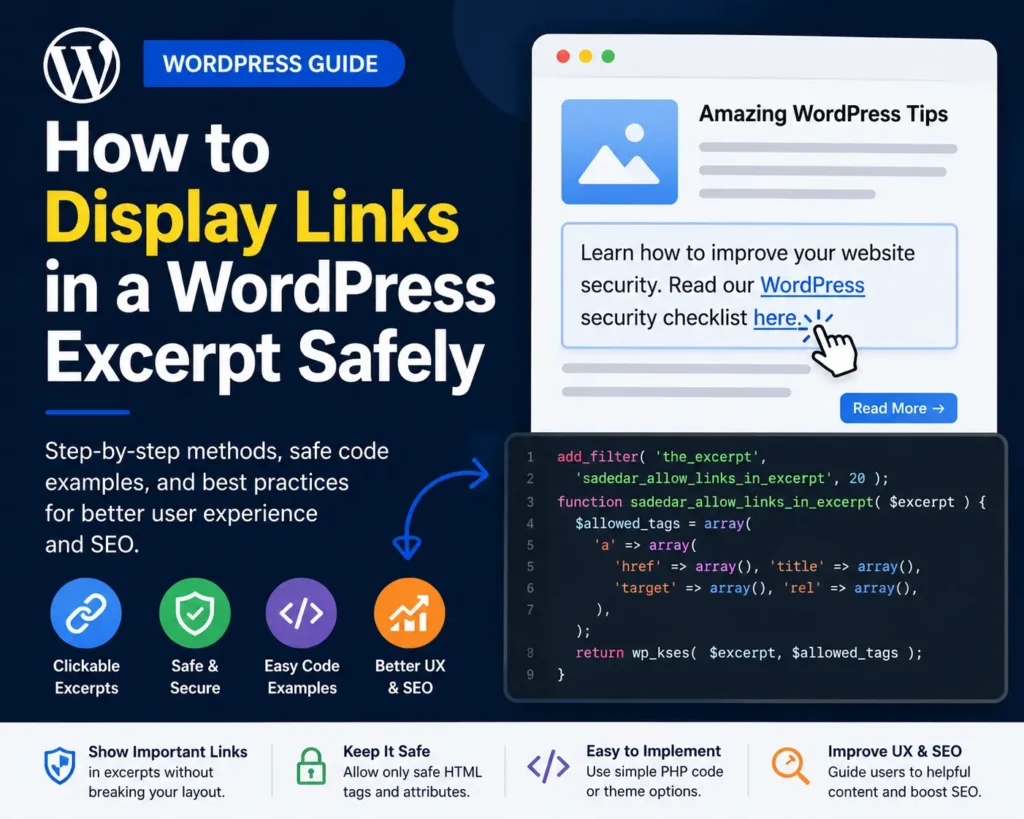
WordPress excerpt links are useful when you want to show a short preview of a post while keeping important anchor links clickable. By default, many WordPress themes remove HTML tags from excerpts. As a result, links inside the post content may disappear when the excerpt is shown on a blog page, archive page, category page, search result page, or custom post list.
This guide explains how to display links in a WordPress excerpt safely. It also shows when you should use this method, where to place the code, what mistakes to avoid, and how to test the result without breaking your website.
What Is a WordPress Excerpt?
A WordPress excerpt is a short summary of a post. It is usually displayed on:
- Blog archive pages
- Category pages
- Tag pages
- Search result pages
- Homepage post grids
- Related post sections
- Custom theme layouts
In many themes, the excerpt is generated automatically from the first part of the post content. However, WordPress and many themes often remove HTML from automatic excerpts to keep the layout clean and safe.
That means a sentence like this inside your post:
Read my full WordPress security checklist for more details.
may appear in the excerpt as plain text without the clickable link.
Why Display Links in a WordPress Excerpt?
There are several practical reasons to allow links in excerpts.
First, links can improve the user experience. If your excerpt mentions a related guide, tool, resource, or service page, a clickable link helps users move to the next useful page quickly.
Second, links can support internal linking. For example, if you write tutorials about WordPress, SEO, AI tools, or website security, a linked excerpt can guide readers to deeper content.
Third, links can make archive pages more useful. Instead of showing plain text only, you can include one meaningful link inside the excerpt when needed.
However, links inside excerpts should be used carefully. Too many links can make your archive pages look messy. Also, unsafe HTML output may create security risks if the code is not handled properly.
Important Safety Note Before Adding Code
Before changing your theme files, follow these steps:
- Take a full website backup.
- Use a staging website if possible.
- Add code to a child theme, not directly to the parent theme.
- Do not paste random PHP code from untrusted sources.
- Test the site after adding the code.
- Keep FTP, hosting file manager, or recovery access ready.
A small PHP mistake can cause a WordPress critical error. Therefore, it is better to test the code on staging first.
Best Method: Allow Only Safe Links in WordPress Excerpts
The safest approach is to allow only selected HTML tags in the excerpt. In this case, we will allow only the <a> tag and a few safe link attributes.
Add the following code to your child theme’s functions.php file or to a site-specific custom plugin.
function sadedar_allow_links_in_excerpt( $excerpt ) {

    $allowed_tags = array(
        'a' => array(
            'href'   => array(),
            'title'  => array(),
            'target' => array(),
            'rel'    => array(),
        ),
    );

    return wp_kses( $excerpt, $allowed_tags );
}
add_filter( 'the_excerpt', 'sadedar_allow_links_in_excerpt', 20 );
What This Code Does
This code filters the displayed excerpt and allows only safe anchor links.
Here is the simple explanation:
add_filter()connects your custom function to the WordPress excerpt output.the_excerptis the filter used when WordPress displays the excerpt.wp_kses()removes unsafe HTML and keeps only the tags you allow.- The
$allowed_tagsarray allows the<a>tag. - The
href,title,target, andrelattributes are allowed for links.
This method is better than allowing all HTML. It keeps the excerpt clean and reduces risk.
Alternative Method: Create a Custom Excerpt Function
In some themes, the above filter may not work because the theme uses a custom excerpt function or trims content manually. In that case, you may need a custom function.
Use this code carefully:
function sadedar_custom_excerpt_with_links( $limit = 40 ) {

    $content = get_the_content();

    $allowed_tags = array(
        'a' => array(
            'href'   => array(),
            'title'  => array(),
            'target' => array(),
            'rel'    => array(),
        ),
    );

    $content = wp_kses( $content, $allowed_tags );
    $content = wp_strip_all_tags( $content, false );

    $words = explode( ' ', $content );

    if ( count( $words ) > $limit ) {
        $words = array_slice( $words, 0, $limit );
        $content = implode( ' ', $words ) . '...';
    }

    return $content;
}
Then place this inside your theme template where you want the excerpt to appear:
<?php echo sadedar_custom_excerpt_with_links( 40 ); ?>
However, this version may not preserve links properly after stripping tags. So, for most users, the first method is cleaner and safer.
Better Theme Template Method
If you are editing a custom theme template, you can display the excerpt with safe HTML like this:
<?php
$excerpt = get_the_excerpt();

$allowed_tags = array(
    'a' => array(
        'href'   => array(),
        'title'  => array(),
        'target' => array(),
        'rel'    => array(),
    ),
);

echo wp_kses( $excerpt, $allowed_tags );
?>
This method gives you more control because you decide exactly where the safe excerpt output should appear.
You may use this in files such as:
archive.phpcategory.phpindex.phpsearch.phphome.php- Custom loop template files
- Custom Elementor or theme builder templates with PHP support
Manual Excerpt Method for Better Control
If you do not want to change PHP code, you can use the manual excerpt field in WordPress.
Step 1: Open the Post Editor
Go to your WordPress dashboard and open the post you want to edit.
Step 2: Enable the Excerpt Panel
In the block editor, open the post settings sidebar. Look for the Excerpt option. If you do not see it, check the editor settings and enable the excerpt panel.
Step 3: Add a Short Manual Summary
Write a short excerpt manually. Keep it helpful and natural.
Example:
Learn how to fix common WordPress redirect issues in this beginner-friendly .htaccess guide.
Step 4: Add Only One Useful Link
Use only one important link inside the excerpt. This keeps your archive page clean.
Step 5: Update and Test
Update the post and check the blog archive page. If the theme supports HTML in manual excerpts, the link may display properly. If not, use the safe code method shown above.
Should You Allow All HTML in Excerpts?
No, you should not allow all HTML in excerpts.
Allowing every HTML tag can create design and security problems. For example, scripts, forms, iframes, or broken HTML can damage your archive layout or create unsafe output.
For most websites, allowing only links is enough. If needed, you can also allow simple formatting tags such as <strong> or <em>, but avoid complex HTML.
Example with links, bold, and italic text:
function sadedar_allow_basic_html_in_excerpt( $excerpt ) {

    $allowed_tags = array(
        'a' => array(
            'href'   => array(),
            'title'  => array(),
            'target' => array(),
            'rel'    => array(),
        ),
        'strong' => array(),
        'em'     => array(),
    );

    return wp_kses( $excerpt, $allowed_tags );
}
add_filter( 'the_excerpt', 'sadedar_allow_basic_html_in_excerpt', 20 );
Use this only if you truly need basic formatting in excerpts.
Where Should You Place the Code?
You have three common options.
Option 1: Child Theme functions.php
This is the common method for theme-level customization.
Go to:
Appearance > Theme File Editor > functions.php
However, editing from the WordPress dashboard can be risky. A PHP error may lock you out. Therefore, it is safer to use FTP, hosting file manager, or a code snippets plugin.
Option 2: Code Snippets Plugin
A code snippets plugin is easier for many non-developers. It lets you add PHP snippets without editing theme files directly.
This method is useful because:
- You can enable or disable snippets.
- You do not need to edit theme files.
- It is easier to manage small customizations.
- It reduces the chance of losing code during theme updates.
Option 3: Site-Specific Plugin
For a more professional setup, create a small custom plugin for website-specific functions. This is useful if you may change themes later but still want to keep the excerpt behavior.
Common Mistakes to Avoid
Mistake 1: Editing the Parent Theme Directly
If you add code to the parent theme, your changes may disappear after a theme update. Always use a child theme or a site-specific plugin.
Mistake 2: Allowing Too Many HTML Tags
Do not allow all HTML just to preserve links. Keep the allowed tags limited.
Mistake 3: Adding Too Many Links in Excerpts
An excerpt should be short. One useful link is usually enough.
Mistake 4: Forgetting Mobile Layout
Long anchor text can break archive cards on mobile screens. Keep excerpt links short and natural.
Mistake 5: Not Testing Search and Category Pages
Your homepage may look fine, but category pages or search result pages may use a different template. Test all important archive layouts.
How to Test If the Code Works
After adding the code, follow this checklist:
- Clear your website cache.
- Clear your browser cache.
- Open your blog archive page.
- Check a category page.
- Check a search result page.
- Inspect the excerpt link.
- Click the link and confirm it opens correctly.
- Test on mobile.
- Test in an incognito browser.
- Check that the layout is not broken.
If your link still does not show, your theme may be using a custom excerpt function. In that case, check the theme template or contact the theme developer.
Troubleshooting: Links Still Not Showing
The Theme Is Removing HTML
Some themes apply their own cleanup function before displaying excerpts. If this happens, the filter may not work. You may need to edit the theme’s archive template or use a child theme override.
A Page Builder Controls the Excerpt
If you use Elementor, Divi, Bricks, Oxygen, or another builder, the excerpt widget may sanitize HTML. Check the widget settings or use a custom template.
Cache Is Showing the Old Version
Caching plugins and server-level cache can delay changes. Clear all cache layers and test again.
The Link Is Not in the Excerpt
If your theme uses the manual excerpt field, links from the main post content may not appear. Add the link directly to the manual excerpt or adjust the template.
A Security Plugin Blocks the Output
Some security plugins may sanitize output or block certain HTML patterns. Temporarily test on staging by disabling related settings, then re-enable protection after confirming the issue.
SEO and User Experience Tips
Adding links inside excerpts can help users discover related content, but it should not be overused.
Follow these best practices:
- Use one useful link per excerpt.
- Keep anchor text short.
- Link to relevant internal pages.
- Avoid keyword stuffing.
- Do not use misleading links.
- Keep excerpts readable.
- Make sure links are visible on mobile.
- Avoid opening every internal link in a new tab.
- Add
rel="noopener"when usingtarget="_blank".
A good excerpt should help the reader decide whether to open the full article. The link should support that goal, not distract from it.
Example of a Good Linked Excerpt
Here is a clean example:
Need a safer WordPress setup? Read this WordPress security checklist before installing new plugins.
This works because it is short, clear, and helpful.
Example of a Bad Linked Excerpt
Here is a poor example:
Click here, visit this page, check this guide, read more, see this tool, and open this link for more information.
This is not helpful. It looks spammy and can reduce trust.
FAQ: Displaying Links in WordPress Excerpts
Can WordPress excerpts include links?
Yes, WordPress excerpts can include links if your theme or custom code allows safe HTML output. However, many themes remove links from automatic excerpts by default.
Is it safe to allow links in excerpts?
Yes, it can be safe if you allow only specific HTML tags and attributes. Use wp_kses() to control which tags are allowed.
Should I allow images in excerpts?
Usually, no. Images inside excerpts can break archive layouts and slow down the page. It is better to use featured images for archive cards.
Will this work with Elementor?
It depends on how Elementor or your theme displays excerpts. Some widgets may remove HTML. If the code does not work, check the widget settings or use a custom template.
Will this affect all excerpts on my site?
Yes, if you use the the_excerpt filter, it can affect all places where the theme uses the standard WordPress excerpt output.
Can I display links only on category pages?
Yes, but you need conditional logic in your PHP code. For example, you can apply the output only when is_category() is true.
What is the best excerpt length?
For most blog archive pages, 30 to 60 words is enough. The exact length depends on your theme design.
Should I use this for AdSense approval?
This improvement can help because the article becomes more useful, complete, and user-focused. However, AdSense approval depends on the overall quality of the site, policy pages, navigation, original content, and user experience.
Final Thoughts
Displaying links in a WordPress excerpt is useful when you want archive pages, category pages, and blog previews to guide users toward helpful resources. However, it should be done safely.
The best method is to allow only safe anchor links instead of allowing all HTML. Add the code to a child theme, code snippets plugin, or site-specific plugin. Then test your homepage, blog page, category pages, search pages, and mobile layout.
A clean excerpt with one helpful link can improve navigation, internal linking, and user experience without making the page look spammy.
Before publishing the update, test the code on a staging site and review at least three archive pages to confirm the links display correctly.