A robots.txt file is one of the simplest but most important technical SEO files on a website. It tells search engine crawlers which parts of your site they can crawl and which parts they should avoid.
However, many website owners use robots.txt without fully understanding it. As a result, they may accidentally block important pages, stop Google from crawling useful content, or create confusion between crawling, indexing, and ranking.
In this guide, I will explain how to write robots.txt for your website in a simple and practical way. You will also learn how to use robots.txt for WordPress, how to add a sitemap line, how to manage Googlebot rules, how to think about AI crawlers, and how to test the file before relying on it.
What Is a Robots.txt File?
A robots.txt file is a plain text file placed in the root directory of a website. For example:
https://example.com/robots.txtThis file gives instructions to search engine crawlers and other bots. It can allow or disallow access to specific folders, pages, files, or URL patterns.
For example, a website owner may want to block crawlers from accessing:
- Admin areas
- Internal search result pages
- Filtered URLs
- Duplicate content pages
- Private staging folders
- Temporary development files
However, robots.txt is not a security tool. It should not be used to hide passwords, private documents, customer information, or confidential files. If a file is sensitive, protect it with proper authentication, server rules, or access permissions.
Why Robots.txt Matters for SEO
Robots.txt matters because it helps control crawler behavior. Search engines use crawlers to discover and understand website pages. If your robots.txt file is written correctly, it can help crawlers focus on useful pages instead of wasting time on low-value URLs.
For SEO, robots.txt can help with:
- Managing crawl access
- Reducing crawling of duplicate URLs
- Preventing crawling of admin areas
- Helping search engines find your sitemap
- Avoiding unnecessary server load
- Keeping technical sections out of crawler paths
However, robots.txt should be used carefully. A single wrong rule can block your entire website from crawling.
For example, this rule blocks all crawlers from the whole website:
User-agent: *
Disallow: /
This can be useful for a private development site, but it is dangerous for a live website that should appear in Google Search.
Robots.txt vs Noindex: Important Difference
Many beginners think robots.txt and noindex do the same thing. They do not.
Robots.txt controls crawling. It tells bots whether they can access a URL.
Noindex controls indexing. It tells search engines not to show a page in search results.
This difference is very important. If you block a page in robots.txt, Google may not be able to crawl the page and see the noindex tag. Therefore, if your goal is to remove a page from search results, a noindex tag is often more appropriate than blocking the page in robots.txt.
Use robots.txt when you want to manage crawler access.
Use noindex when you want to keep a page out of search results.
Basic Robots.txt Syntax
A robots.txt file usually includes these main directives:
User-agent
The user-agent line defines which crawler the rule applies to.
User-agent: *The asterisk means the rule applies to all crawlers.
You can also target a specific crawler:
User-agent: GooglebotDisallow
The disallow line tells crawlers which path they should not crawl.
Disallow: /private/This blocks crawlers from crawling URLs under the /private/ folder.
Allow
The allow line tells crawlers which path they can crawl, even if a broader rule blocks a parent folder.
Allow: /wp-admin/admin-ajax.phpThis is commonly used in WordPress because the admin area is usually blocked, but the admin-ajax.php file may need to remain accessible for some frontend functions.
Sitemap
The sitemap line tells crawlers where your XML sitemap is located.
Sitemap: https://example.com/sitemap_index.xmlFor WordPress websites using SEO plugins like Yoast SEO or Rank Math, the sitemap often uses /sitemap_index.xml.
Simple Robots.txt Example for Most Websites
For a normal website, a simple robots.txt file may look like this:
User-agent: *
Disallow:

Sitemap: https://example.com/sitemap_index.xml
This means all crawlers are allowed to crawl the website, and the sitemap location is provided.
This is a safe basic setup when you do not need to block any specific section.
Recommended Robots.txt for WordPress
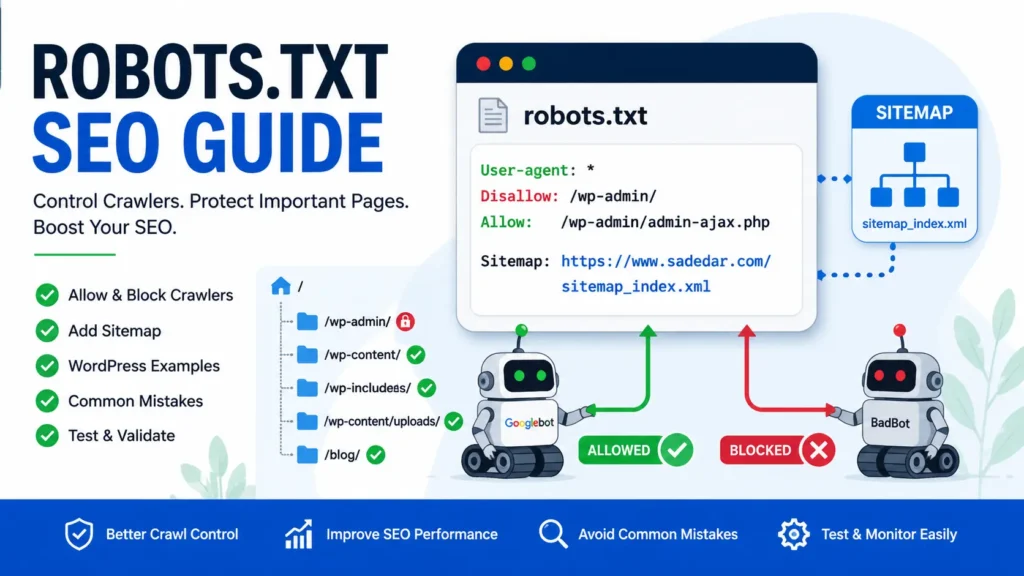
For most WordPress websites, this is a clean and practical robots.txt example:
User-agent: *
Disallow: /wp-admin/
Allow: /wp-admin/admin-ajax.php

Sitemap: https://example.com/sitemap_index.xml
Replace https://example.com/sitemap_index.xml with your real sitemap URL.
This setup blocks the WordPress admin area while allowing admin-ajax.php. It also gives search engines the sitemap location.
If your website is using WordPress, you should avoid blocking important folders such as:
/wp-content/or
/wp-includes/In the past, some people blocked these folders. Today, this can create problems because search engines may need to access CSS, JavaScript, images, and theme files to understand how your page looks and works.
Robots.txt for a Website Under Development
If your website is under development and you do not want search engines to crawl it, you may use:
User-agent: *
Disallow: /
However, use this only for staging or development websites.
Before launching the website, remove this rule. Many website owners forget to update robots.txt after launch, and then they wonder why their website is not being crawled properly.
For a live website, the rule should not block the entire site unless there is a very specific reason.
Robots.txt for Blocking Internal Search Pages
WordPress internal search result pages can sometimes create many low-value URLs. You may block them like this:
User-agent: *
Disallow: /?s=
Disallow: /search/
However, check your website structure first. Some WordPress themes or plugins may create different search URL formats.
Blocking internal search pages can help reduce crawling of low-value pages. Still, this should be done carefully because some websites may have useful search-based pages that support user experience.
Robots.txt for Blocking URL Parameters
Some websites create many duplicate URLs because of filters, sorting options, tracking parameters, or session IDs.
Example:
User-agent: *
Disallow: /*?sort=
Disallow: /*?filter=
Disallow: /*?sessionid=
This can help prevent crawlers from spending time on unnecessary variations of the same content.
However, do not block parameters blindly. First, check Google Search Console, server logs, or SEO crawler data to understand which URLs are being crawled.
Robots.txt for WooCommerce Websites
For WooCommerce websites, you may want to block cart, checkout, and account pages from crawling.
Example:
User-agent: *
Disallow: /cart/
Disallow: /checkout/
Disallow: /my-account/
Disallow: /?add-to-cart=

Sitemap: https://example.com/sitemap_index.xml
These pages are not useful for organic search because they are user-specific or transactional. However, make sure your product pages, product category pages, and important content pages are not blocked.
Robots.txt and AI Crawlers
Today, website owners also think about AI crawlers and content usage. Some AI companies and tools use bots to crawl websites. If you want to manage access for specific AI crawlers, you can add user-agent rules for those bots.
Example format:
User-agent: ExampleAIBot
Disallow: /
This is only a format example. You should verify the exact user-agent names from the official documentation of the crawler you want to manage.
Also, remember that robots.txt depends on crawler cooperation. Good crawlers usually respect robots.txt, but it is not a complete protection system. If you need to protect private content, use login protection, server restrictions, or firewall rules.
Common Robots.txt Mistakes
1. Blocking the Entire Website by Accident
This is the most dangerous mistake:
User-agent: *
Disallow: /
Use this only for private or development websites.
2. Blocking CSS and JavaScript Files
Do not block important theme, plugin, CSS, or JavaScript files. Search engines may need these files to render your pages correctly.
3. Using Robots.txt as a Privacy Tool
Robots.txt is public. Anyone can visit your robots.txt file. Therefore, do not list private folders or sensitive file paths that expose confidential information.
4. Forgetting the Sitemap Line
A sitemap line is not required, but it is helpful. It gives crawlers a clear path to your XML sitemap.
5. Blocking Pages You Actually Want to Rank
Before blocking any folder, ask yourself: “Do I want this page or section to appear in search results?”
If yes, do not block it.
6. Confusing Robots.txt With Meta Robots Tags
Robots.txt tells crawlers where they can go. Meta robots tags tell search engines whether a crawled page should be indexed or followed.
Use the right method based on your goal.
How to Create a Robots.txt File
Follow these steps:
- Open a plain text editor such as Notepad, VS Code, or another code editor.
- Add your robots.txt rules.
- Save the file as
robots.txt. - Upload it to the root directory of your website.
- Visit
https://yourdomain.com/robots.txtto confirm it loads. - Test it in Google Search Console or another SEO testing tool.
Do not create robots.txt in Microsoft Word or Google Docs because formatting characters can create problems.
How to Edit Robots.txt in WordPress
There are a few ways to edit robots.txt in WordPress.
Option 1: Use an SEO Plugin
Many SEO plugins allow you to edit robots.txt from the WordPress dashboard. This is usually the easiest method for website owners.
Before saving changes, copy the old version and keep a backup.
Option 2: Use Hosting File Manager
You can create or edit the file from your hosting control panel file manager. Upload the file to the public root folder, often called public_html.
Option 3: Use FTP or SFTP
If you manage websites professionally, FTP or SFTP gives you more control. Connect to the server, open the root directory, and upload or edit the robots.txt file.
How to Test Your Robots.txt File
After creating or updating robots.txt, test it carefully.
Check these items:
- Does the file load at
/robots.txt? - Is the sitemap URL correct?
- Are important pages allowed?
- Are admin or duplicate sections blocked correctly?
- Is the file written in plain text?
- Did you accidentally block the whole website?
- Can Google crawl your important pages?
You should also inspect important URLs in Google Search Console after updating robots.txt.
Best Robots.txt Example for Sadedar.com
For sadedar.com, a clean WordPress robots.txt setup may look like this:
User-agent: *
Disallow: /wp-admin/
Allow: /wp-admin/admin-ajax.php

Sitemap: https://www.sadedar.com/sitemap_index.xml
If your sitemap uses a different URL, replace the sitemap line with the correct one.
This setup is simple, safe, and suitable for a WordPress blog. It blocks the admin area, allows necessary frontend AJAX functionality, and gives crawlers the sitemap location.
When You Should Not Use Robots.txt
Do not use robots.txt for every SEO issue. In many cases, another method is better.
Do not use robots.txt to:
- Hide private files
- Remove indexed pages from Google quickly
- Fix duplicate content without analysis
- Block pages that need to rank
- Control user access
- Protect confidential client data
Use password protection, noindex tags, canonical tags, redirects, or server-level restrictions when those options are more appropriate.
Quick Robots.txt Checklist
Before publishing your robots.txt file, review this checklist:
- The file is located at the root of the domain.
- The file is named exactly
robots.txt. - The file is plain text.
- The main website is not accidentally blocked.
- WordPress admin is blocked correctly.
admin-ajax.phpis allowed.- The sitemap line is included.
- Important pages are crawlable.
- No private information is exposed.
- The file is tested after publishing.
FAQs About Robots.txt
What is the best robots.txt file for WordPress?
For most WordPress websites, the best basic robots.txt file blocks /wp-admin/, allows /wp-admin/admin-ajax.php, and includes the sitemap URL.
Can robots.txt improve SEO?
Robots.txt can support SEO by helping crawlers avoid low-value or unnecessary URLs. However, it does not directly improve rankings. It is mainly a crawl management file.
Should I add my sitemap to robots.txt?
Yes, it is a good practice to add your XML sitemap URL in robots.txt. This helps crawlers discover the sitemap more easily.
Can robots.txt stop a page from appearing in Google?
Not always. Robots.txt blocks crawling, but a URL may still appear in search results if Google discovers it from other links. If you want to prevent indexing, use a noindex tag on a crawlable page.
Is robots.txt required for every website?
No, it is not required. However, most websites should have a simple robots.txt file because it gives crawlers clear instructions and can include the sitemap location.
Can I block AI crawlers with robots.txt?
You can add rules for specific AI crawler user-agents if those crawlers support robots.txt. However, robots.txt is not a security system, and not every crawler may follow it.
Final Thoughts
A robots.txt file looks simple, but it can strongly affect how search engines crawl your website. A good robots.txt file should be clear, minimal, and safe. For most WordPress websites, you do not need a complicated setup. You mainly need to block the admin area, allow necessary WordPress functionality, and include the sitemap URL.
Before editing robots.txt, always make a backup. After editing, test your important pages in Google Search Console. This will help you avoid accidental crawl problems and keep your website ready for better SEO performance.
Need help improving your website’s technical SEO? Review your robots.txt file, sitemap, redirects, internal links, and thin content pages together. A clean technical foundation makes your content easier for search engines and users to understand.